---
title: 👥 Staff Management on Connect
description: Easily add, configure, and control user accounts, roles, and permissions for your entire team.
---
[Skip to content](https://info.rideto.com/knowledge/staff-user-management#main-content)
[More support](https://info.rideto.com/knowledge/kb-tickets/new?hsLang=en)
![ChatGPT Image Jul 14, 2025, 03\_46\_31 PM.png\]](https://info.rideto.com/hs-fs/hubfs/ChatGPT%20Image%20Jul%2014%2c%202025%2c%2003_46_31%20PM.png?width=50&height=50&name=ChatGPT%20Image%20Jul%2014%2c%202025%2c%2003_46_31%20PM.png)
Open main navigation
Close main navigation
- [More support](https://info.rideto.com/knowledge/kb-tickets/new)
- [Book 1:1 Setup/Help Session](https://calendar.app.google/ubu4q3PBds8Rsqx7A)
[Book 1:1 Setup/Help Session](https://calendar.app.google/ubu4q3PBds8Rsqx7A)
How can we help?
- There are no suggestions because the search field is empty.
1. [Connect Help Center](https://info.rideto.com/knowledge?hsLang=en)
2. [Staff Management](https://info.rideto.com/knowledge/staff-management?hsLang=en)
# 👥 Staff Management on Connect
## Easily add, configure, and control user accounts, roles, and permissions for your entire team.
🎬 **Video Tutorial**
---
**Table of Contents**
[1. User Roles on Connect](https://info.rideto.com/knowledge/staff-user-management#userroles)
[2. Account Seat Limits](https://info.rideto.com/knowledge/staff-user-management#seat_limits)
[3. Adding New Staff to Connect](https://info.rideto.com/knowledge/staff-user-management#addingnewstaff)
[4. Setting Permissions for Users](https://info.rideto.com/knowledge/staff-user-management#setting_permissions)
---
Connects staff Management system allows you to add, configure, and manage team members within your platform. You can control access levels, assign permissions, and track staff activity .
#### Key Features
- ➕ **Create Accounts:** Quickly add new team members so they can access their schedules on the go via mobile.
- 🔐**Permissions:** Restrict access so staff only see and edit their own courses—no one can add or change calendar entries without your approval.
- 🚦 **Active/Inactive Status:** Toggle accounts on or off instead of deleting them. Inactive users don’t count towards your seat limit.
- **📊 Pay & Shift Management:** Assign pay rates and site locations, then manage and view staff shifts directly in the calendar.
#### **1. Users Roles on Connect**
Connect supports different types of staff members with varying access levels:
| Role | Description |
| --- | --- |
| **Main Account Owner (You)** | Full control over all settings |
| **Admin** | Edit access to main sections |
| **Staff Member** | Default View-only access |
**⚠️ Staff** **members** are only able to view their own calendar items by default. They cannot see other staff members' or admins schedules on calendar.
To grant a staff member permission to view all calendars, an account owner or admin must go to the staff member's permission and set this account to admin.
**2\. Account Seat Limits:**
Each Connect user can add a limited number of staff members to the system at no extra charge.**⚠️ Seat Limit:** Essential plan allows up to **3 active staff** accounts. You can simply upgrade to **[Connect Pro](https://www.connectmct.com/v2/pro)** to Increase your seat limits.
| | **Connect Essential** | **Connect Pro** |
| --- | --- | --- |
| **Seat Limits** | 1 Main User + up to 3 Staff | Up to 2 Admin + 3 Staff (5 Total Users Included) |
If your Pro Tier seat allocation isn’t sufficient. and you have a bigger team, you can purchase [additional seats here.](https://www.connectmct.com/v2/expand)
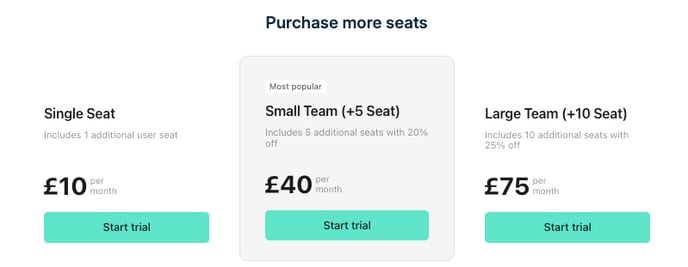
ℹ️ When you don’t renew your Pro Tier or seat subscription, those users will be deactivated at the end of the term and will be automatically reactivated as soon as you renew.
**3\. Adding New Staff**
Ensure you’re logged in to Connect, then [use this link](https://www.connectmct.com/v2/staff) to go straight to the Staff section.
[](https://www.loom.com/share/46e7108fecbc43f8888c77158064d849?sid=f982b034-c776-4d78-b994-83a806a718a7)
| Step | Action |
| --- | --- |
| 1. **Navigate to Staff** | From the dashboard, click **Staff** in the sidebar |
| 2. **Open Add Staff Form** | Click **“Add Staff”** |
| 3. **Enter Email** | Provide a unique, valid email address |
| 4. **Set Temp Password** | Create a secure temporary password |
| 5. **Add Personal Info** | Fill in First Name & Last Name |
| 6. **Assign Location** | Select the staff member’s primary site |
| 7. **Add Certificate Number** | You can use is while issuing certificates |
| 8. **Save** | Click **Save**—(Staff will receive invitation mail) |
**⚠️ Ensure the email address is unique and valid, as login details and invitations will be sent there.
\*Deleted staff cannot be restored; if you’re unsure, it’s better to inactive rather than delete.**
#### **4. Setting Permissions for Users**
| Permission | Level | Description |
| --- | --- | --- |
| Hidden | No Access | Module is invisible to the user |
| View Only | Read-Only | Can view content but not make changes |
| Edit Access | Full Access | Can create, modify, and delete |
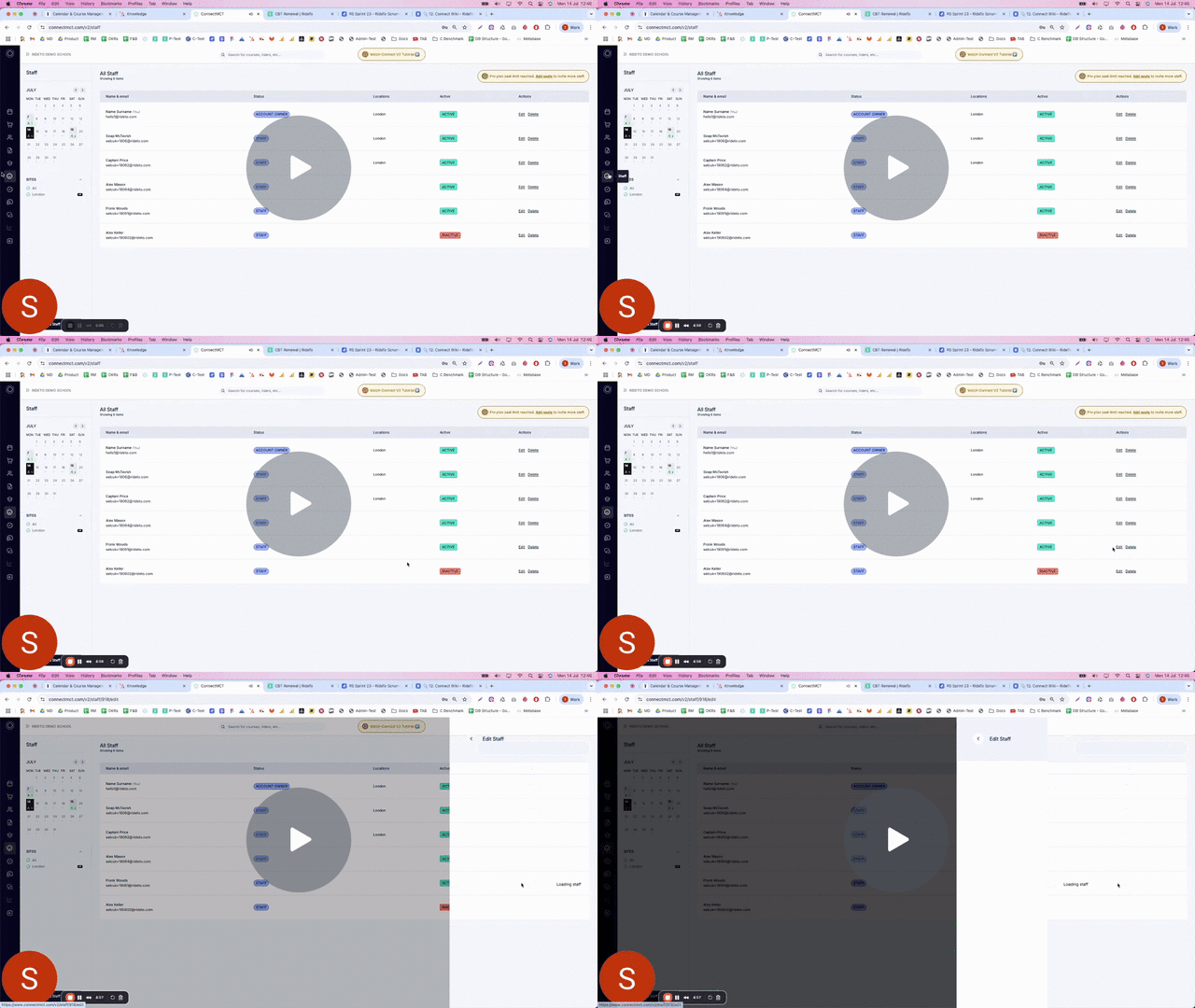
[ConnectMCT - Editing Staff Permission - Watch Video](https://www.loom.com/share/47a10b8d21d34e81a33ed4963e7ef4a5)
[](https://www.loom.com/share/47a10b8d21d34e81a33ed4963e7ef4a5)
Steps for permission settings;
1. **Edit Staff:** Go to **Staff** list and click **Edit** next to a user.
2. **Open Permissions Tab:** Select the **Permissions** section.
3. **Set Base Role:** Choose **Staff** or **Admin** as the default level.
4. **Module Access:** For each module (Courses, Orders, Invoices, Bikes, etc.),
click hidden /view / edit to set permission
5. **Save Changes:** Click **Save**—new permissions apply on next login.
- [Quick Start Guide](https://info.rideto.com/knowledge/quick-start-guide?hsLang=en)
- [Calendar & Course Management](https://info.rideto.com/knowledge/calendar-course-management?hsLang=en)
- [Orders](https://info.rideto.com/knowledge/orders?hsLang=en)
- [Contacts](https://info.rideto.com/knowledge/contacts?hsLang=en)
- [Invoice](https://info.rideto.com/knowledge/invoice?hsLang=en)
- [Courses](https://info.rideto.com/knowledge/courses?hsLang=en)
- [Staff Management](https://info.rideto.com/knowledge/staff-management?hsLang=en)
- [DVLA Licence Check](https://info.rideto.com/knowledge/dvla-licence-check?hsLang=en)
- [Disclaimer](https://info.rideto.com/knowledge/disclaimer?hsLang=en)
- [CBT Certificates (New!)](https://info.rideto.com/knowledge/cbt-certificates-new?hsLang=en)
- [Bikes Inventory](https://info.rideto.com/knowledge/bikes-inventory?hsLang=en)
- [Communication](https://info.rideto.com/knowledge/communication?hsLang=en)
- [Settings](https://info.rideto.com/knowledge/settings?hsLang=en)
- [Connect Pro](https://info.rideto.com/knowledge/connect-pro?hsLang=en)
- [FAQ](https://info.rideto.com/knowledge/faq?hsLang=en)
- [Dashboard](https://info.rideto.com/knowledge/dashboard?hsLang=en)
[](https://www.connectmct.com/v2/home)
Connect Help Center
Copyright © 2025, RideTo Ltd