![ChatGPT Image Jul 14, 2025, 03_46_31 PM.png]](https://info.rideto.com/hs-fs/hubfs/ChatGPT%20Image%20Jul%2014%2c%202025%2c%2003_46_31%20PM.png?width=50&height=50&name=ChatGPT%20Image%20Jul%2014%2c%202025%2c%2003_46_31%20PM.png)
Table of Contents
1. Connect Profile Settings
2. School Settings
3. Booking Widget Settings
4. Adding & Using Promotional Codes
5. Uploading DVSA Test Dates
1. Connect Profile Settings
Manage your personal account information.
-
First Name / Last Name:
-
Email: Your schools contact mail
-
Instructor Certificate Number: DVSA certification ID
Actions:
-
Click Edit to update your profile
-
Use Reset Password to change your login password
2. School Settings
Set up official school info and manage subscriptions.
School Details
-
School Name: Publicly visible school name
-
Cancellations: Enable or disable cancellation of bookings
-
Link CBT & CBT Renewal: Toggle to share spaces between course types
ℹ️ This optional feature which you can turn on or off within your Connect account settings will allow you to sync CBT and CBT Renewal course spaces.
How does CBT/CBT Renewal Sync Works?
-
Enables shared spaces between CBT and CBT Renewal courses if held at the same location and time
-
Total spaces = highest value between linked courses
-
Helps schools handle both course types with shared instructors or bikes
Subscription Management
-
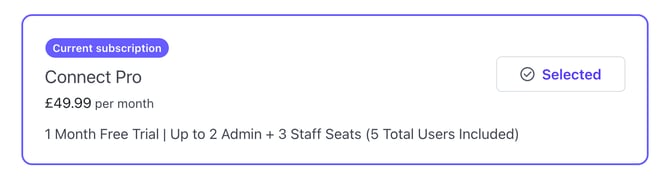
You can see your current subscription details
-
View billing and payment info
-
Upgrade or downgrade from the same section
3. Booking Widget
The Booking Widget is a fully customisable, embeddable booking tool for your website. It allows riders to view real-time availability and book courses instantly, 24/7.
Your widget can be tailored to match your school’s branding, booking rules and information requirements.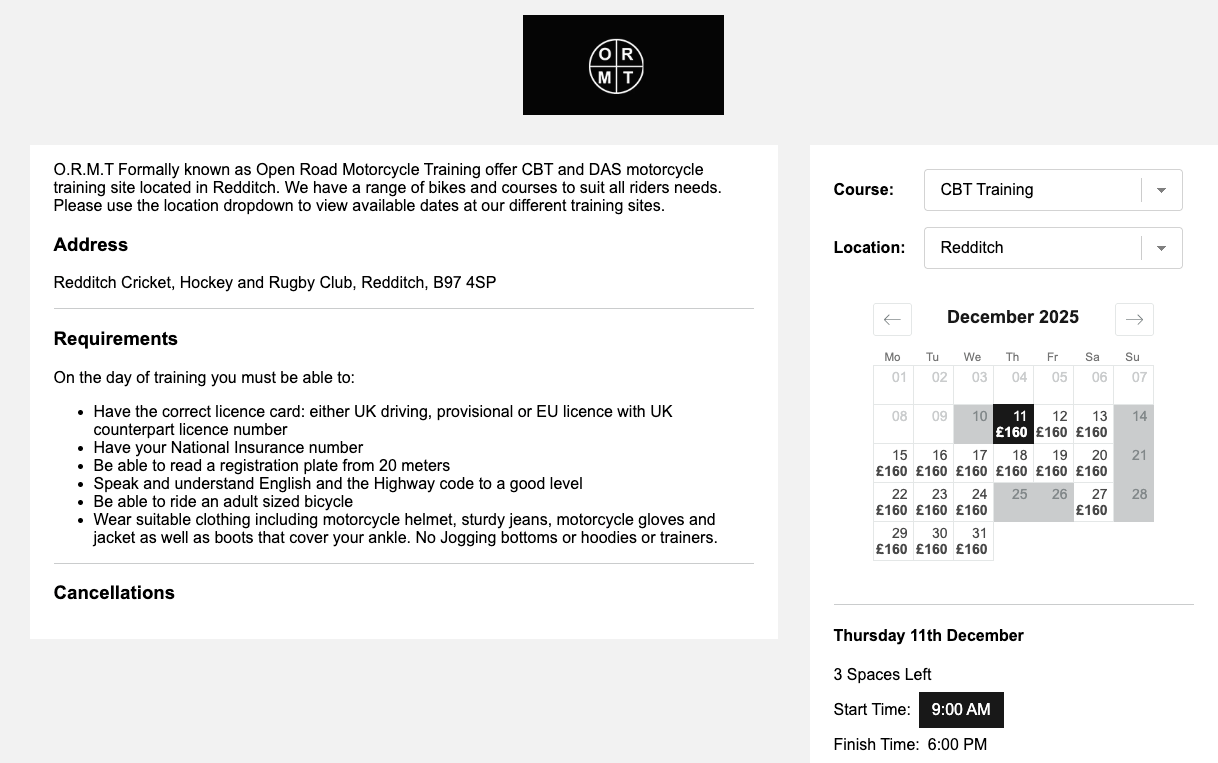
Customisation Options
This section lets you control how riders experience the booking process on your website.
You can edit the appearance, the information shown to customers and the rules applied before a booking is completed.
-
Brand Colors: Enter hex codes to match your site

-
Widget information: Brief message on widget about booking with your School.
-
Requirements & Cancellation: You can add custom text for each section
-
Terms & Conditions Link: Add your website's legal link
Preview Widget
You can view how your widget will appear to riders by clicking Review Widget at the top of the page. This opens a live preview of your widget, allowing you to:
-
Check your branding colours
-
Review the text you’ve entered
-
Confirm the layout and messaging
-
Ensure everything looks correct before publishing
This is the best way to see exactly what your riders will experience on your website.
ℹ️ If your booking widget isn’t set up yet, simply contact us to have it live and start receiving bookings within minutes.
Additional Booking Settings
-
Cut-off Time: Prevent same-day bookings after a set time (e.g., 22:00)
-
Available Times: Define course availability
-
CBT Renewal Field: Let customers self-identify for renewal eligibility
-
3rd Party Opt-in: Toggle to enable marketing permissions
4. Promotional Codes
You can generate custom promo codes—seasonal or customer-specific—for use on your booking widget, helping to boost your widget bookings.
Create discount codes directly in your dashboard.

How to Create a Code:
Login to your account and click on the following link -> Create Promo Code
-
Discount Code: Custom name (e.g. SUMMER25)
-
Discount Value: Discount value (e.g. £10 )
-
Select specific product: Choose the course type
-
Product: Apply to specific course
-
Minimum Spend: Set eligibility requirements
-
Expiration: Choose expiry date
How your customer will use the code:
At checkout, your customer simply enters the discount code you’ve shared with them in the “Promo Code” field on your booking widget.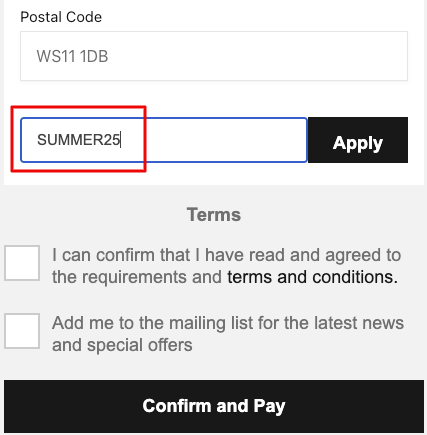
5. Uploading DVSA Tests Dates
Connect allows you to easily import your DVSA Mod 1 and Mod 2 test dates directly into your calendar after purchasing them from DVSA.
Once uploaded, your team can assign riders to any available test slot and manage cancellations smoothly.
How It Works
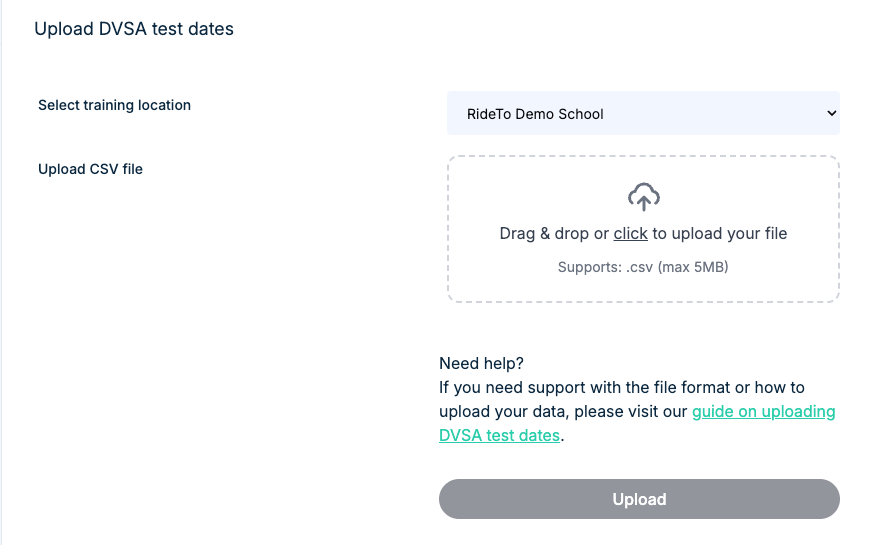
After you purchase Mod 1 / Mod 2 test dates from the DVSA portal, you can download your test schedule file and upload it straight into Connect.
These dates will then appear in your Connect calendar just like any other event.
This makes it easy to:
-
Add riders to specific test slots
-
Track upcoming availability
-
Manage cancellations and avoid unnecessary DVSA charges
Test Centre Selection
-
Choose your school’s primary test centres
Uploading Your DVSA Test Dates
Follow these steps to upload your DVSA-provided test dates:
Step 1: Go to the DVSA Tests section in Connect
Step 2: Select your school from the dropdown list
Step 3: Upload the CSV file you downloaded from DVSA
Step 4: Connect will automatically validate and process the file
Once uploaded, all test slots will appear in your calendar.
File Requirements
To ensure successful upload, the DVSA file must be:
-
In CSV format
-
Exported directly from the DVSA system
-
Containing the required fields.