![ChatGPT Image Jul 14, 2025, 03_46_31 PM.png]](https://info.rideto.com/hs-fs/hubfs/ChatGPT%20Image%20Jul%2014%2c%202025%2c%2003_46_31%20PM.png?width=50&height=50&name=ChatGPT%20Image%20Jul%2014%2c%202025%2c%2003_46_31%20PM.png)
🎬 Video Tutorial
Table of Contents
1. Overview of Invoice Table
2. Invoice Status Types
3. Creating New Invoices
4. Customer Payment Screen
The invoices page is where you can create, send and manage invoices and payments from customers. The invoice feature is powered by your Stripe account, at any time you can view the same data within Stripe.
1. Invoice Table | Key Information Displayed
Invoice table displays key details like issue and due dates, status, customer name, invoice reference, total amount, outstanding balance, related order, and quick actions to view or delete.
2. Invoice Status Type
| Status | Meaning |
|---|---|
| ✅ PAID | Invoices that have been fully paid. Outstanding amount will be £0.00. |
| 🟢 Open | Invoices that have been issued but payment is still pending. |
| 📝 DRAFT | Invoices that are being prepared but haven't been issued yet. |
| 🚫 Void | Cancelled or invalid invoices that are no longer active. |
| 🔴 Uncollectible | Payment term passed. |
3. Creating New Invoices
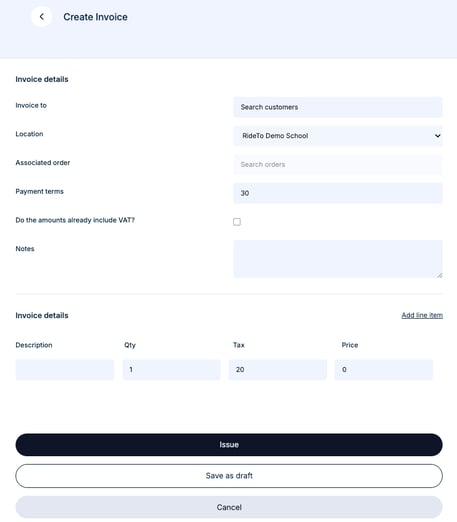
Click “Add Invoice” at the bottom of your invoice list
Fill Invoice Details
-
-
Invoice To: Search & select customer
-
Location: Your course site (e.g., RideTo Demo School London)
-
Associated Order: Link an existing order
-
Payment Terms: e.g., “30 days”
-
VAT Settings: Include or exclude VAT in prices
-
Notes: Any special terms or messages
-
Save or Issue
-
-
📤 Issue (marks as Open + sends email/SMS)
-
💾 Save as Draft (no customer notification)
-
Viewing & Managing Invoices
-
View Invoice: Click View to see full details, line items, and payment history
-
Change Status: Mark Open invoices as Paid, Uncollectible, or Void
💳 4. Customer Payment Screen
Your branded Stripe-hosted payment page lets customers pay securely. It will match your company logo and color scheme as set in your Stripe dashboard.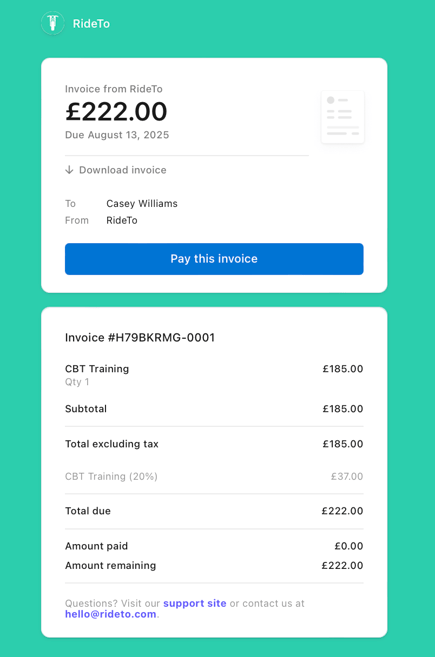
💡 Tip: Customize branding in Stripe to reinforce trust and improve payment conversion.