![ChatGPT Image Jul 14, 2025, 03_46_31 PM.png]](https://info.rideto.com/hs-fs/hubfs/ChatGPT%20Image%20Jul%2014%2c%202025%2c%2003_46_31%20PM.png?width=50&height=50&name=ChatGPT%20Image%20Jul%2014%2c%202025%2c%2003_46_31%20PM.png)
Table of Contents:
1. What Is a Course Package?
2. Creating a Course Package
3. How Packages Appear in the Calendar
4. Viewing Course Package Details
5. Assigning a Rider to a Course Package
6. Removing a Rider from a Package
7. Deleting a Course Package
What Is a Course Package?
A Course Package allows you to link multiple Full Licence sessions, such as:
🏍️ Full Licence Trainings
📝 Module 1
🏁 Module 2
into a single course for pupils.
Instead of managing each session separately or tracking progress on paper diary, Course Packages let you manage the entire journey in one place.
Why Use Course Packages?
🎯 One journey, one view
Manage the rider’s full licence path as a single programme.
📅 Clear calendar
All Full Licence sessions are visible and linked.
⚙️ Less admin work
Assign or remove a rider once, not course by course.
📊 Better planning
Manage Full Licence courses at a glance.
Creating a Course Package
You can create a Course Package by grouping existing sessions using the Create Package Course wizard.
Step-by-Step: Create Package
1️⃣ Open Calendar
2️⃣ Click Create Package Course in the calendar header
3️⃣ Use Course type filters to find sessions
4️⃣ Select one or more sessions from the list
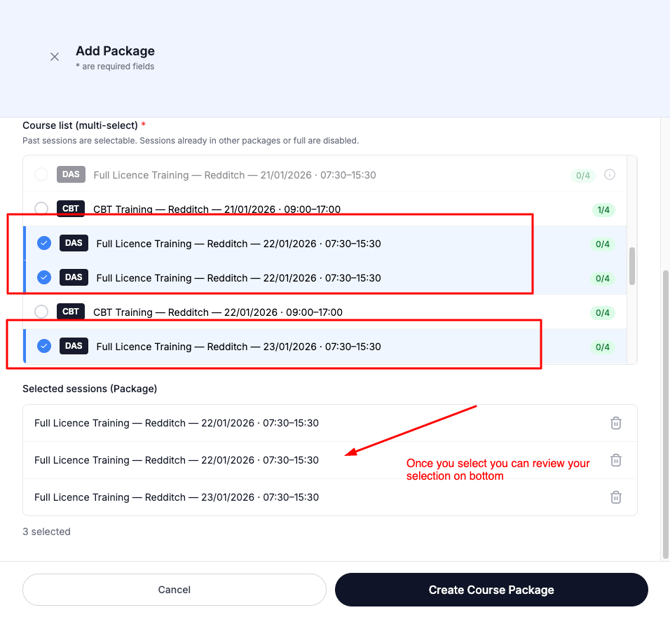
6️⃣ Click Create Course Package
🔗 How Packages Appear in the Calendar
All sessions inside a Course Package are visually marked in the calendar. Each packaged session shows:
Package icon, Package ID in course details;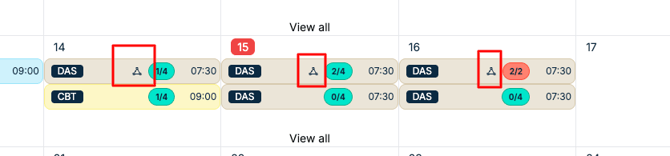
👀 Viewing Course Package Details
Click any session that belongs to a package to open the Course Package Detail view. The Package view includes:
📌 Header Package name / ID
📅 Sessions Overview
👤 Rider Section
-
No rider assigned, or Assigned rider card (name, phone, email)
You can open individual session or rider details directly from this view.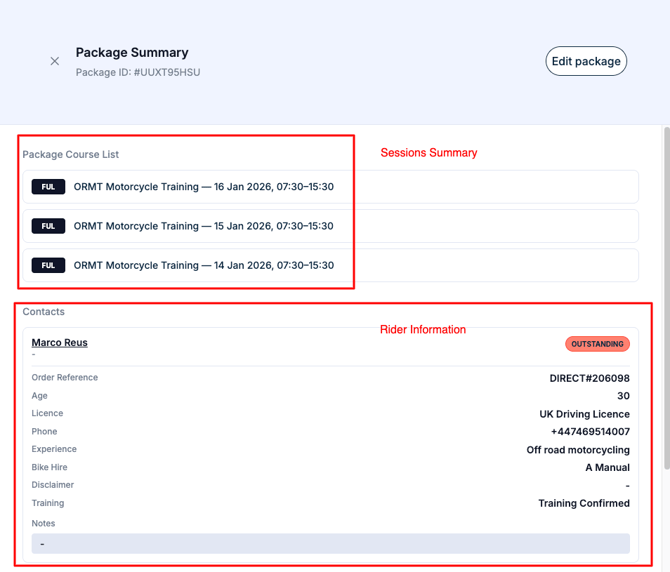
👥 Assigning a Rider to a Course Package
A rider can be assigned in two ways.
Option 1: From Package Detail
-
Open the Course Package
-
Click Add Rider
-
Search for an existing contact or create a new one
-
Confirm
➡️ The rider is automatically added to all sessions in the package.
Option 2: From Any Session in the Package
If a rider is added to any single session that belongs to a package:
➡️ Connect automatically assigns that rider to the entire Course Package.
❌ Removing a Rider from a Package
If a rider is removed from the Course Package:
- They are removed from all sessions
- The related order is cancelled automatically
🗑 Deleting a Course Package
You can delete a Course Package from the Package Detail view. Click Edit Package button on the top right
* Packages with an assigned rider cannot be deleted
* The rider must be removed first
On Delete
-
The Course Package is deleted 📦
-
All sessions inside it are removed from the calendar 📅