![ChatGPT Image Jul 14, 2025, 03_46_31 PM.png]](https://info.rideto.com/hs-fs/hubfs/ChatGPT%20Image%20Jul%2014%2c%202025%2c%2003_46_31%20PM.png?width=50&height=50&name=ChatGPT%20Image%20Jul%2014%2c%202025%2c%2003_46_31%20PM.png)
🎬 Video Tutorial
Table of Contents
1. Contacts Table Overview
2. Adding New Contacts
3. Viewing Contact Details
4. Send E-mails & SMS to Your Customers
All of your customer information will be stored in the Customers tab. This is GDPR and Data Protection Act compliant and can be deleted manually by yourselves if needed. You can see a customer's entire history through their profiles and you can track their journey.
1. Contacts Table Overview
Contact table shows key details like full name, phone number, latest order reference and an edit option for updating contact details.

ℹ️ Search Functionality
Use the search bar to find contacts by name, email, or phone number. The search is real-time and will filter results as you type.
2. Adding New Contacts
| Step | Action |
|---|---|
| 1. Add Contact | Click “Add Contact” at the bottom of the Contacts list |
| 2. Fill Required Info | Enter Name & Phone Number (Email recommended) |
| 3. Optional Details | Add Driving Licence No., Date of Birth, preferred courses |
| 4. Assign Courses | Select which training programs the contact is interested in |
| 5. Save | Click “Save”—profile appears immediately in your Contacts tab |
3. Viewing Contact Details
Click any contact name to open their full profile:
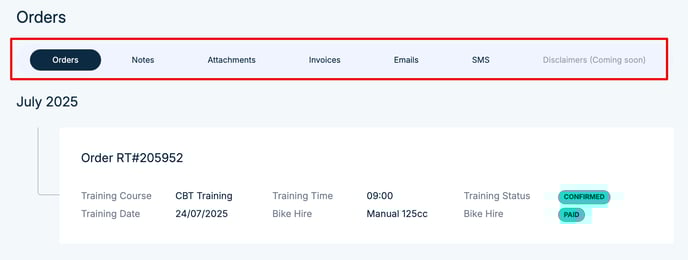
This page lets you view every detail for a contact;
-
Order History: Contacts all bookings with details
-
Notes & Attachments: Special requirements, uploaded documents for contact
- Invoices: You can add or view invoices linked to this contact.
Communication Log: View all past communications in the profile. Send SMS and Email directly.
💡 Pro Tip: Use email/SMS templates to maintain consistent messaging and save time on repeat communications.
4. Send E-Mail and SMS Directly From Contacts Page
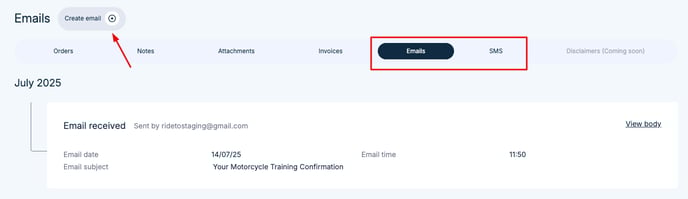
Steps:
-
Open Contacts
-
Choose Email or SMS tab
-
Pick a template or Choose Direct Option
-
Edit the content, then send